
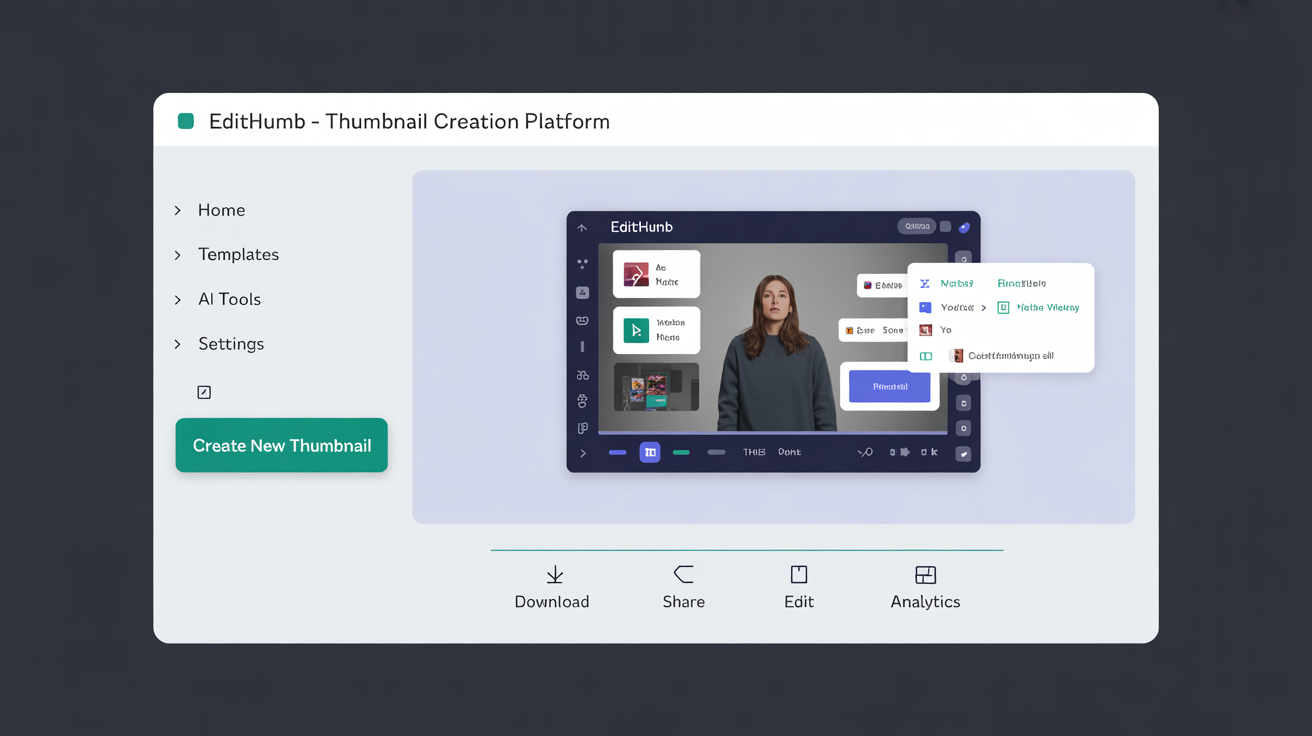
Step 1: Open the Integrations Panel
Launch Edithumb on your Windows machine and head straight to the settings area. Look for the panel that lets you add new connections. This spot keeps everything organized so you can focus on creating appetizing visuals without hassle.
Step 2: Choose Your Service
Browse the list of available options like cloud storage or social platforms. Pick one that fits your daily routine, such as a photo library service. Each choice adds real value by pulling in fresh content directly to your editing canvas.
Step 3: Enter Connection Details
Fill in the required fields with your account info. Use the input areas that appear after selection. Double-check the details to ensure a solid link that saves time during busy sessions.
- Provide your username or email
- Add any secure token if prompted
- Confirm the platform name matches exactly
These details create a reliable bridge between tools.
Step 4: Test the Link
Click the verify button to check if everything works. Edithumb runs a quick check and shows success with a simple message. If issues pop up, review the entries and try again for that homestyle reliability.
Step 5: Customize Sync Options
Adjust settings for how often data updates or which folders to include. Set preferences that match your style, like pulling only recent images. This step brings concrete benefits by keeping your project library current and ready.
Consider options such as automatic refresh every hour or manual pulls when needed. The airy layout makes these choices easy to spot and change.
Step 6: Save and Explore Benefits
Hit save to lock in the connection. Return to the main workspace to see new options appear in menus. Try importing a sample image from the linked service to experience the flow firsthand.
Now your thumbnails gain extra layers from the integration. Edit with high-contrast previews and soft-shadow effects that feel fresh every time. Repeat the process for additional services to build a full setup that supports rich animations and smooth navigation.
Watch how the app handles multiple links without slowing down. Use the platform badges in the download area if you need to update later. This approach keeps your work inviting and focused on results rather than setup chores.
Step 7: Troubleshoot Common Hiccups
If a connection stalls, clear the cache from the advanced menu. Restart the app to refresh all active links. Check your internet status first since stable access helps everything run well.
Review any error notes that appear in plain text. These notes point to simple fixes like re-entering a token. Stay patient and the process stays straightforward like a favorite family recipe.
Once fixed, test the integration again to confirm it pulls content as expected. Users often find this adds lasting ease to their thumbnail projects on Windows.