
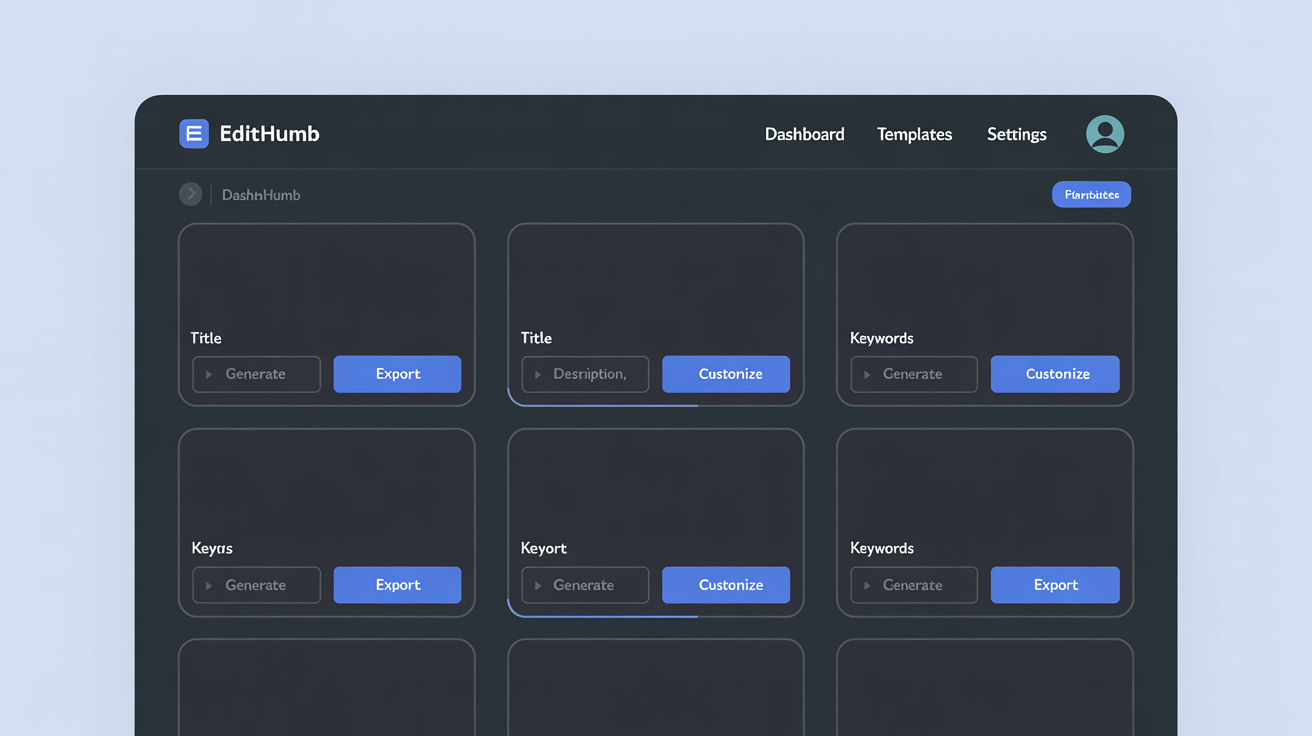
Step 1: Grab the Installer
Start by heading to the Edithumb site and picking the Windows version that fits your system. Once the file lands in your downloads, double-click to begin the smooth install process. It takes just a minute or two on most machines, leaving you with a clean desktop shortcut ready for action.
Step 2: Launch and Welcome the App
Open Edithumb from your start menu or desktop icon. The window greets you with a light interface that feels inviting like a sunlit kitchen counter. Toggle to dark mode if your space calls for it, then watch the rich animations guide your eyes across the airy layout. No fuss, just fresh tools waiting at hand.
Step 3: Bring in Your First Image
Click the import button to pull a photo from your folders or drag one straight in. Watch as the glassmorphism panels lift softly with a glow on hover, making the selection feel responsive and alive. Choose a shot that sparks appetite, such as a garden harvest or baked treat, and see it fill the main view without delay.
Step 4: Shape the Thumbnail
Use the rounded tools along the side to crop, adjust colors, or add text overlays. The high-contrast sliders respond with scale and lift effects as you move them, helping you build layers that pop. Try soft shadows for depth or quick filters that keep everything tasting natural and vibrant. Experiment freely because changes stay reversible.
- Resize to common video sizes with one tap
- Layer simple icons using the floating labels for precision
- Preview how it looks on mobile or desktop views
Keep the process light and fun, aiming for that just-picked freshness in every detail.
Step 5: Save and Share
When your thumbnail looks ready, hit the export button to save it in your chosen format. The app shows file size notes right there for quick checks. Use built-in share buttons to post directly or copy the file path for later use. Your first creation sits complete in under five minutes, ready to draw eyes like a warm loaf from the oven.
Practice this flow a couple times and soon it becomes second nature. The multi-step wizard can help if you want guided progress bars on bigger projects. Images load lazily so even large files feel snappy. Remember to check checksums on the download page for peace of mind during updates. With these steps you hold everything needed for daily thumbnail work that feels homemade yet polished.