
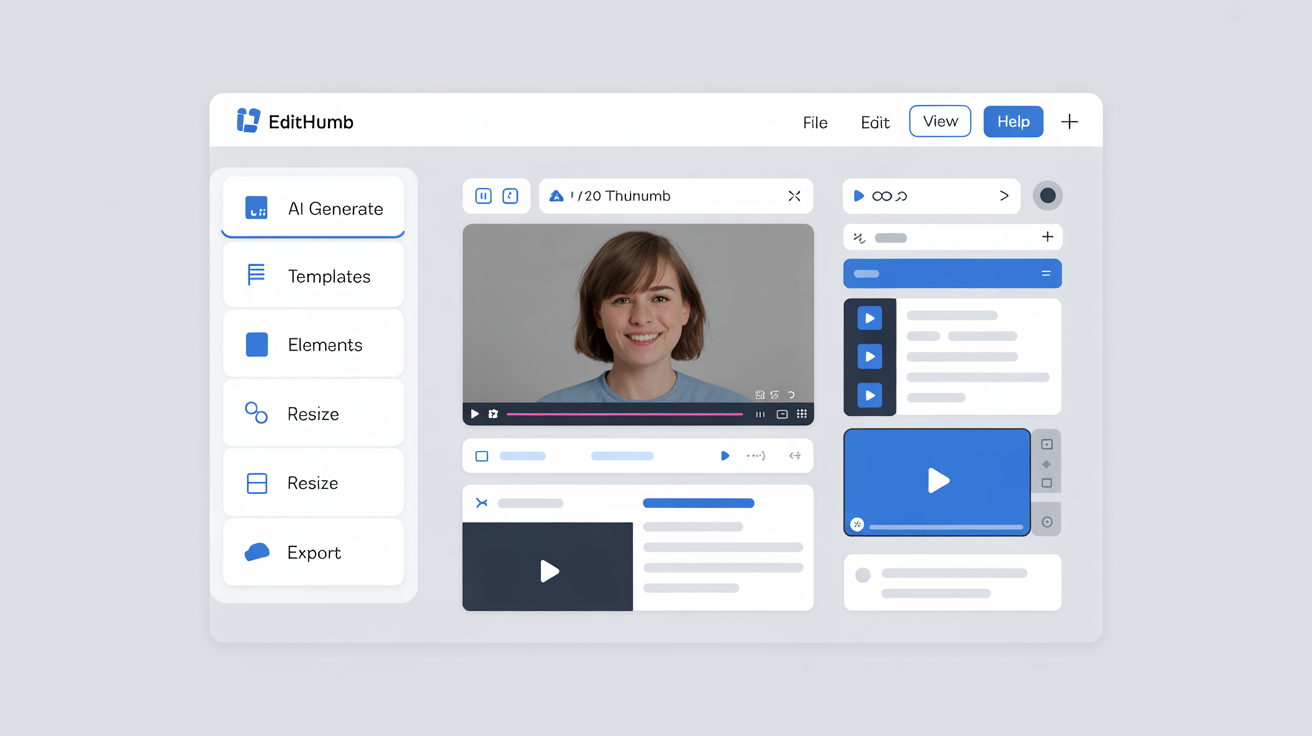
Step 1: Begin with a fresh install check
Start by confirming your Edithumb copy sits in the right folder on your Windows machine. Open the program folder and look for any unexpected files that might have slipped in during download. This simple scan keeps your workspace clean like sorting produce before cooking.
Step 2: Set strict folder permissions
Right click the Edithumb directory and choose properties then security tab. Limit access to your main user account only so others on the same computer cannot peek at your image collections. Concrete limits here prevent accidental exposure while you focus on creative edits.
Step 3: Scan all imported images first
Before loading any picture into Edithumb run a quick scan with your trusted Windows security tool. This habit catches hidden issues early and lets you work with confidence on fresh files. Regular scans turn into second nature after a few rounds.
Step 4: Create daily backup copies
Choose a separate external drive or secure cloud spot away from your main computer. Copy completed thumbnail sets there after every session so nothing gets lost during unexpected events. Think of it as preserving a family recipe collection for future use.
Step 5: Use strong unique passphrases
When Edithumb asks for any login details craft a long phrase that mixes ordinary words in new ways. Store it in a protected note instead of repeating the same string across apps. Strong choices reduce risk without complicating your daily flow.
Step 6: Review recent activity logs
Open the internal log viewer inside Edithumb and check the last ten sessions for any strange patterns. Look at file paths and times to spot anything that feels off. This quick review acts like tasting your dish before serving it to guests.
Step 7: Keep the program updated regularly
Visit the official site once a week and compare your version number against the newest release. Apply updates promptly so you gain the latest protections built into each refresh. Staying current feels satisfying like pulling warm bread from the oven.
Step 8: Limit network connections during edits
Turn off internet access while working inside Edithumb unless you need to pull reference images. Disconnecting reduces outside interference and keeps your focus on the task at hand. Simple toggles deliver big peace of mind.
Step 9: Test restore from backup monthly
Pick one thumbnail project each month and pull it back from your stored copy. Verify it opens cleanly inside the app without errors. Regular tests confirm your safety net works when you need it most.
Step 10: Close the app after every use
Exit Edithumb fully instead of leaving it running in the background. This small action releases resources and lowers any chance of lingering access points. Finish each session the way you would tidy a kitchen after a satisfying meal.